01Download the installer
Click Download installer on the homepage. The file is PhantomPadSetup.exe — a single ~67 MB binary that bundles the .NET runtime, the WPF app, and the ViGEmBus driver installer.
[ DOCS ] / 01 · INSTALL
Click Download installer on the homepage. The file is PhantomPadSetup.exe — a single ~67 MB binary that bundles the .NET runtime, the WPF app, and the ViGEmBus driver installer.
Double-click the file in your Downloads folder.
You might see a dialog titled Windows protected your PC. If it appears, click More info, then click the Run anyway button that appears underneath. The big Don't run button is the default — ignore it.
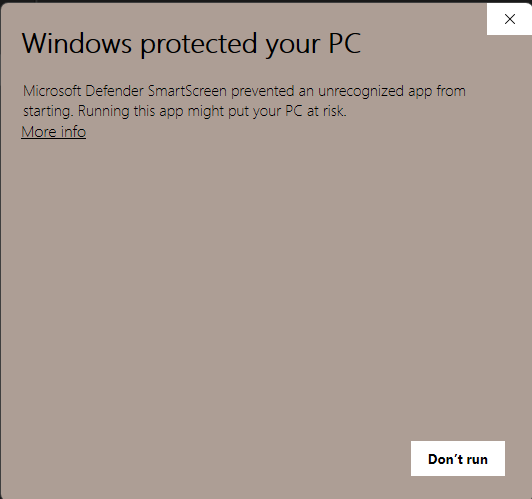
PhantomPad doesn't have a code-signing certificate yet. Windows shows this dialog for any brand-new app from a publisher it hasn't seen before — it's a reputation check, not a malware detection. The same installer still passes Microsoft Defender's actual antivirus scan.
Certificates that suppress this dialog cost roughly $220 a year and still take weeks of organic downloads to build reputation. We're shipping unsigned until launch revenue justifies the ongoing cost; the warning will keep appearing for new installs in the meantime, and will fade naturally as install volume builds reputation for the binary.
Windows asks for permission to make changes to your device. Click Yes. The elevation is for the ViGEmBus driver only — PhantomPad itself runs as your normal user account, no admin needed after this first install.
Standard installer wizard. Accept the license, leave the default install location, click Install.
The bundled ViGEmBus driver installer runs at the end of the wizard — this is what makes the virtual gamepad appear to games as a real one. If you already have it from another tool, the step is skipped silently.
▸ IF THAT DIDN'T TAKE
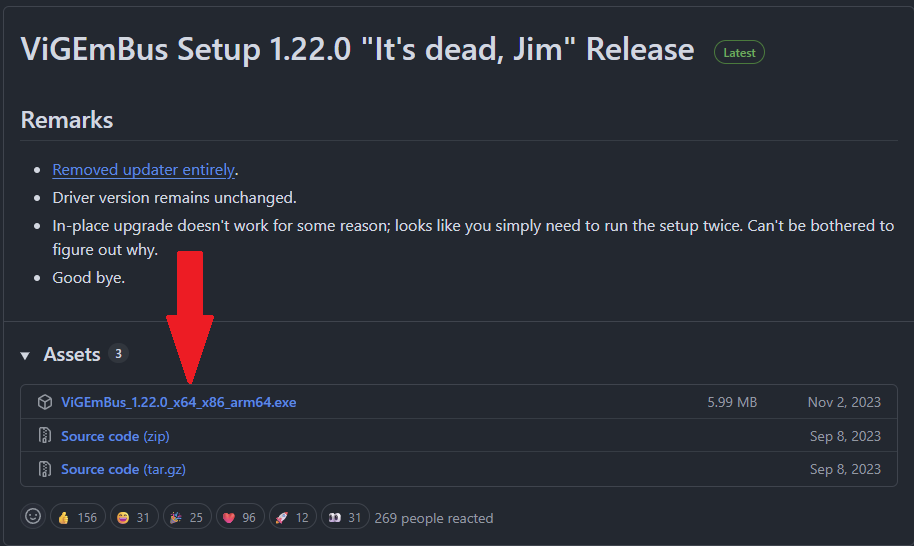
On first launch you'll see an Install the gamepad driver dialog. Click Download driver — it opens the ViGEmBus releases page on GitHub. Under Assets on the latest release, grab the ViGEmBus_*_x64_x86_arm64.exe (not the source zips), run it (one quick UAC prompt, then Next → Install → Finish), and relaunch PhantomPad.
Leave Launch PhantomPad checked and click Finish. A shortcut is placed in the Start Menu and on your desktop for next time.
PhantomPad opens. A free 3-day trial starts automatically and runs the core M+KB → gamepad bridge — bindings, alts, combos, aim-feel tuning, the lot. Macros and anti-recoil stay locked until you activate a Subscription or Lifetime license. The title-bar chip shows trial status and days remaining.
Press F8 to enable the bridge. While on, mouse and keyboard drive the virtual gamepad and the game sees only the pad. While off, your input goes to Windows as normal.